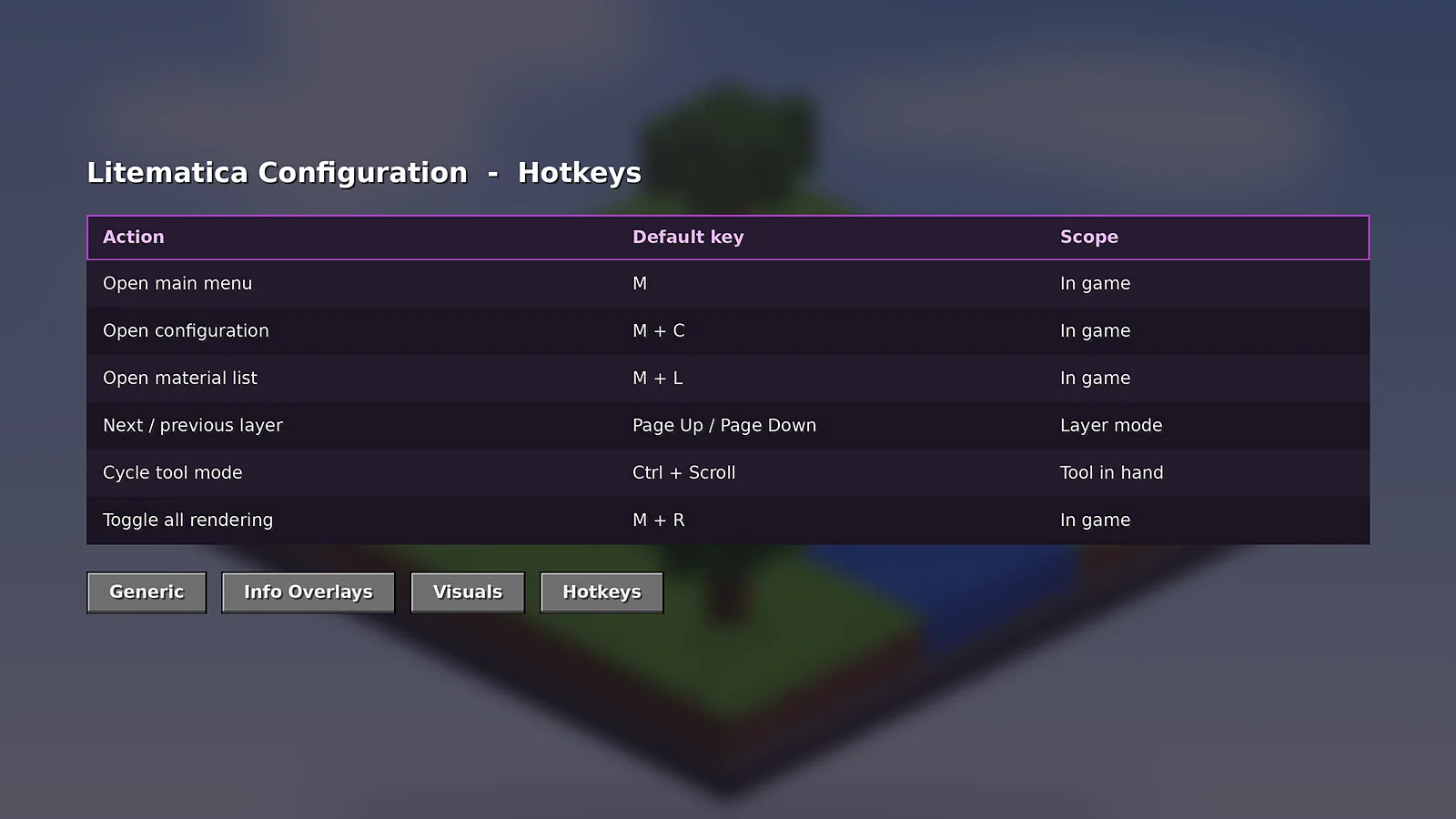
Litematica is driven by hotkeys. Learn a handful of them and Schematic Mod becomes fast and natural. The defaults below apply to recent builds, and every key can be changed in the configuration menu.
Menu shortcuts
| Keys | Action |
|---|---|
| M | Open the main menu |
| M + C | Open the configuration menu |
| M + L | Open the material list |
| M + R | Toggle all rendering |
The tool item
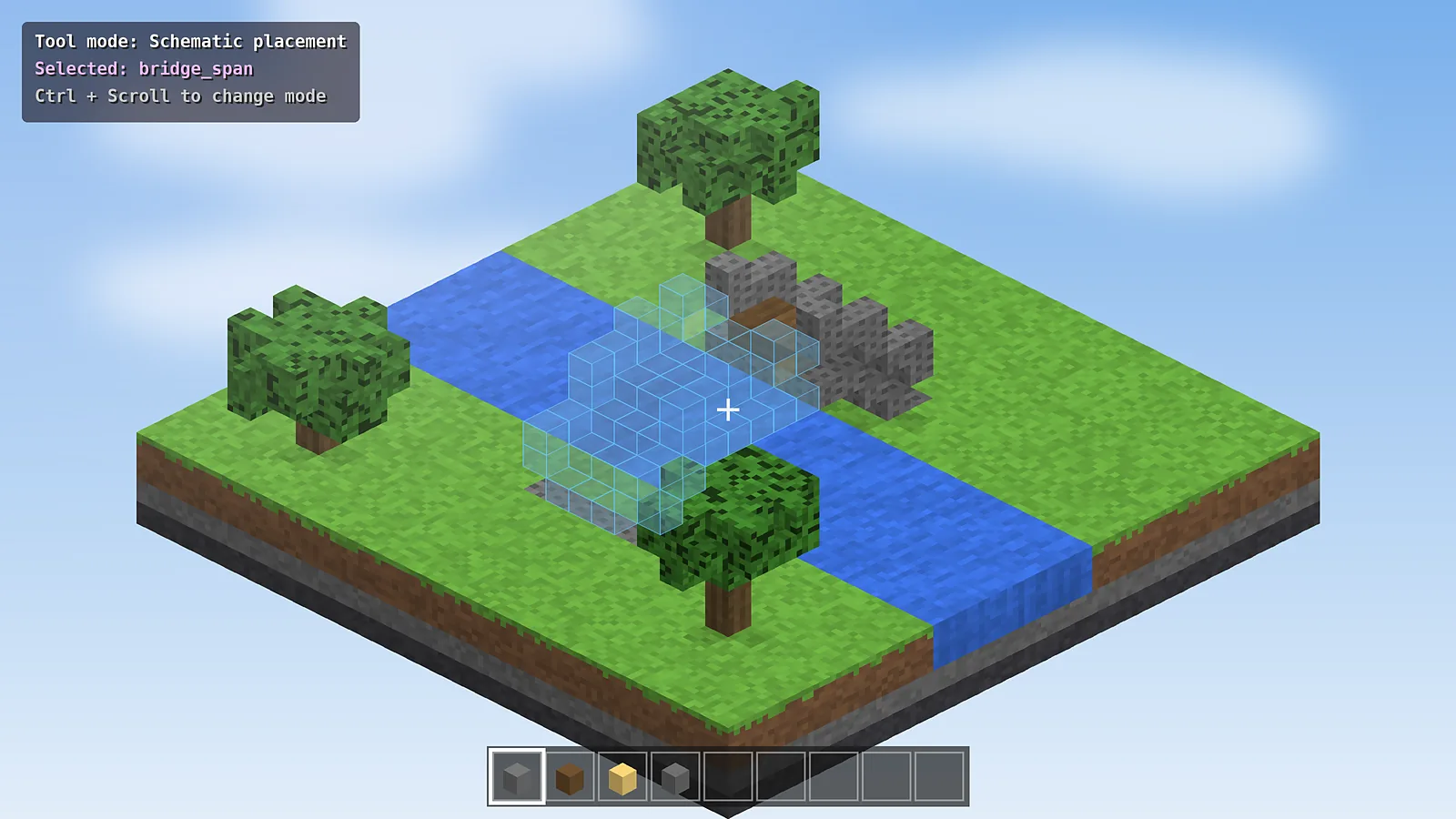
By default the tool item is a stick. Holding it activates Litematica's tool modes. Left and right click set the two corners of an area selection, which you can then save as a schematic.
Tool modes
While holding the tool, press Ctrl and scroll to cycle modes such as area selection, schematic placement, fill, replace, delete and paste. The current mode is shown on screen so you always know what a click will do.
Layer controls
When the render layer mode is set to a single layer or a range, Page Up and Page Down move through layers. This pairs perfectly with Easy Place Mode.
How to rebind a key
- Press M + C and open the Hotkeys tab.
- Click the key next to an action and press the new combination.
- Use the settings icon on each row to decide whether it works in menus, in game or both.
Want the full picture? Our usage guide covers beginner and advanced workflows, and the FAQ answers common setup questions.

Schematic Mod Editorial Team
Our editors write practical Litematica guides and check every article against the official Litematica and MaLiLib documentation and release notes. Spotted something outdated? Tell us and we will fix it.