Schematic Mod
Open the main menu
Press M in any world. Every Litematica feature starts from this screen.
Beginner and advanced workflows, best practices and keyboard shortcuts for building with Litematica.
From your first hologram to advanced sub-region work, in short steps you can follow in game.
Press M in any world. Every Litematica feature starts from this screen.
Put a .litematic file into .minecraft/schematics, choose Load Schematics, select it and click Load.
Open Schematic Placements and adjust X, Y and Z, or hold the tool item (a stick by default) and nudge it into place.
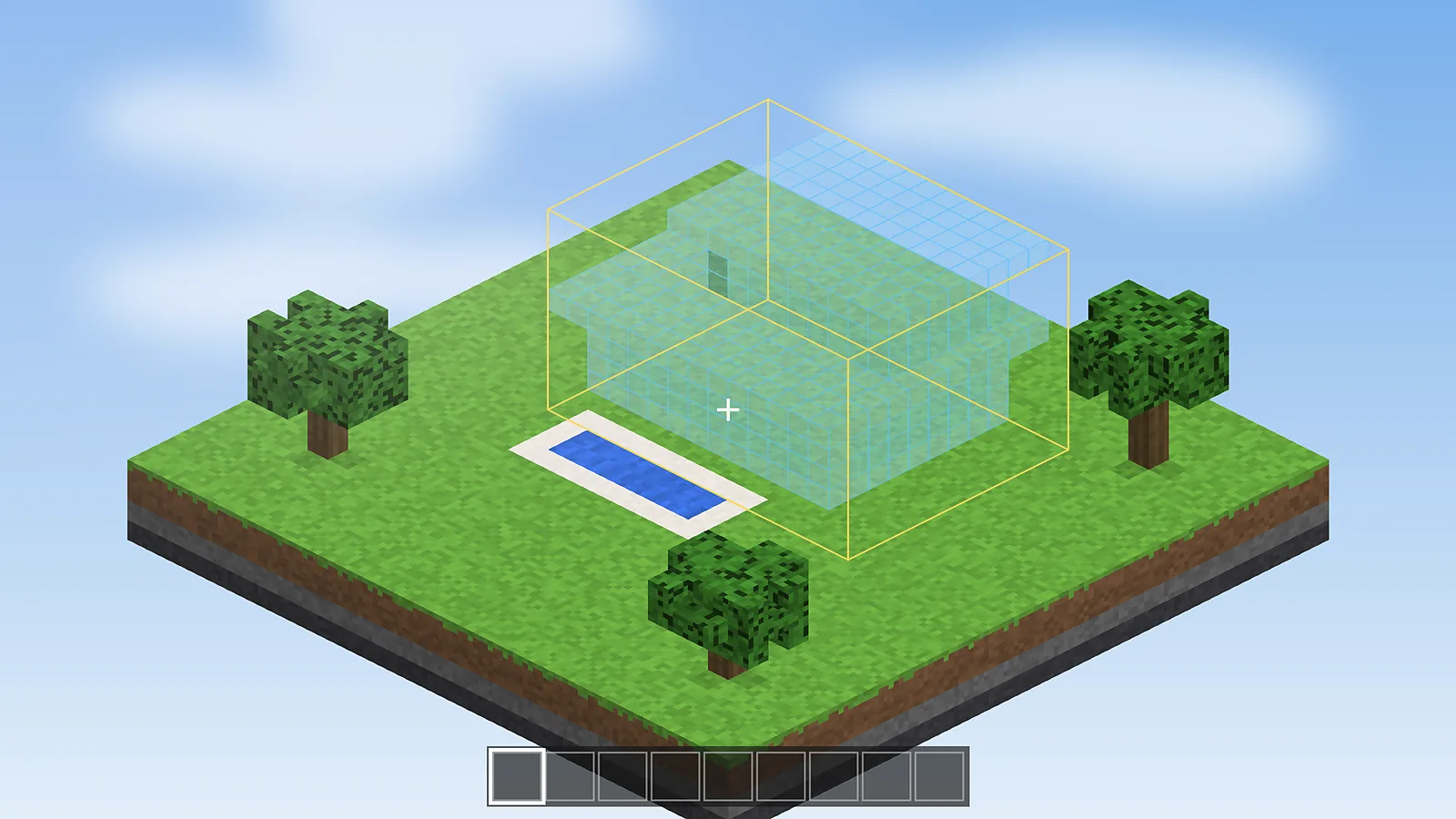
Place real blocks inside the ghost copy. Correct blocks disappear from the overlay as you go.
Save a build as several boxes so you can move a wing, tower or farm module on its own.
Render a single layer or a range and step through with Page Up and Page Down.
Start the Schematic Verifier to list every wrong block, wrong state and missing block.
With the tool in Paste mode, place an entire schematic on single-player or where you have operator rights.
Always keep Litematica, MaLiLib and Minecraft on the same version to avoid crashes.
Build one corner block first and lock the placement so the hologram never drifts.
Copy your schematics folder before big updates or when switching launchers.
Printing and pasting may be restricted on public servers, so ask the staff first.
Write the material list to a file and share it with friends helping you gather.
Missing blocks, wrong blocks and wrong states use different overlay colours you can change.
If M clashes with another mod, change it under Configuration, Hotkeys.
Save your own base as a schematic before a risky redesign as a quick undo.
| Keys | Action |
|---|---|
| M | Open the Litematica main menu |
| M + C | Open the configuration menu |
| M + L | Open the material list |
| Page Up / Page Down | Move to the next or previous layer |
| Ctrl + Scroll | Cycle the tool mode while holding the tool item |
| Left / Right click | Set area corners 1 and 2 with the tool item |
| M + R | Toggle all Litematica rendering |
Defaults in recent builds. Change any key under Configuration, Hotkeys. More in the hotkeys guide.
The whole Schematic Mod workflow in five steps, from selecting a build to verifying the copy.
Mark two corners of any build with the tool item to create an area selection.
Save the selection as a .litematic file with blocks, states and sub-regions.
Load the file on any world or computer from the schematics folder.
Position the hologram, then rotate or mirror it to fit your plot.
Fill the hologram and let the verifier catch every wrong block.
Practical walkthroughs written for builders, from first install to advanced schematic tricks.
Everything you need to get Litematica running: Fabric, MaLiLib, the mods folder and a quick test in game.
Read articleHow the three best-known schematic tools differ, and which one fits survival, creative and server work.
Read articlePut a file in the right folder, load it, create a placement and line it up in your world.
Read article