Minecraft builds are shared in several file types. Knowing which is which saves you from broken imports and missing blocks. This guide covers the formats you will meet and how Schematic Mod handles each one.
The main schematic formats
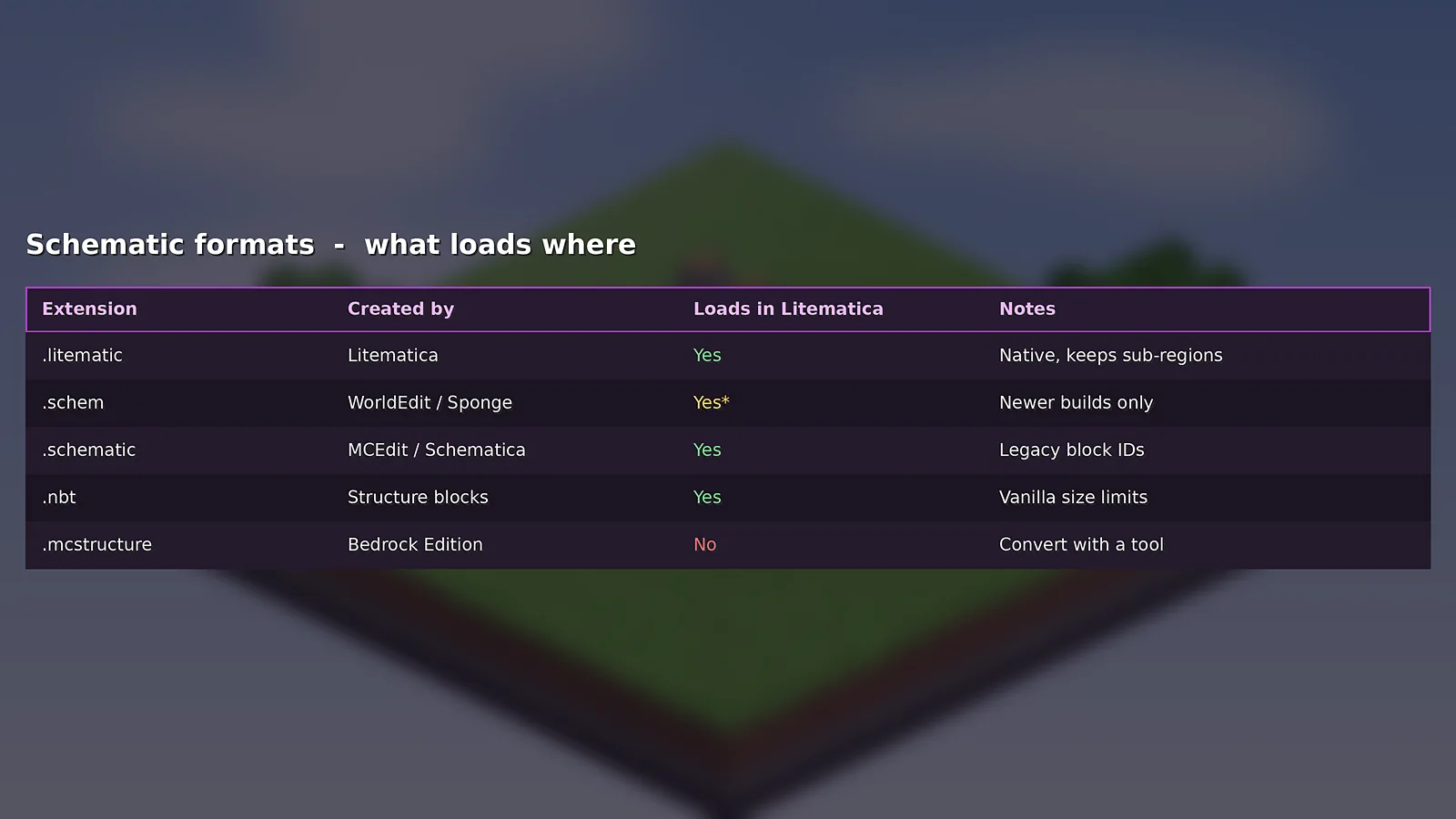
- .litematic: Litematica's own format. It stores block states, multiple sub-regions and metadata such as the author and preview.
- .schem: the Sponge format used by modern WorldEdit and many servers.
- .schematic: the legacy MCEdit and Schematica format based on old numeric block IDs.
- .nbt: vanilla structure block files, handy for small builds and data packs.
- .mcstructure: Bedrock Edition structures.
Loading formats directly
Put the file into your schematics folder and open Load Schematics. Litematica reads .litematic, .schematic and .nbt files, and newer builds also read .schem. After loading a foreign format, save it again as .litematic to keep sub-regions and states in one tidy file.
Legacy .schematic files
Older files store blocks as numeric IDs from before Minecraft 1.13. Litematica converts them, but some blocks may change, especially colours, rotations and technical blocks. Check the result with the verifier before a long survival build.
Moving builds to and from Bedrock
Schematic Mod does not run on Bedrock. To bring a Java build to Bedrock, open the world or schematic in an external editor such as Amulet and export a Bedrock structure. Going the other way, export the Bedrock build and convert it to a Java format before loading it in Litematica.
Best practice for sharing
Share .litematic files with Litematica users and .schem files with WorldEdit users. Include the Minecraft version in the file name, for example castle_26.1.2.litematic, so nobody loads it into the wrong version.
Need a refresher on placing a file once it loads? Read how to load a schematic, or grab the latest build from the download page.

Schematic Mod Editorial Team
Our editors write practical Litematica guides and check every article against the official Litematica and MaLiLib documentation and release notes. Spotted something outdated? Tell us and we will fix it.