Schematic Mod, the name most players give to Litematica, takes about five minutes to install once you know the order. You need three things that all target the same Minecraft version: the Fabric loader, the Litematica jar and the MaLiLib library. Get those right and the mod works the first time.
What you need first
- Minecraft Java Edition with the official launcher or a launcher such as Prism.
- Fabric Loader from the official Fabric installer.
- Litematica from the Schematic Mod download page.
- MaLiLib from the MaLiLib releases for the same game version.
Step 1: Install Fabric Loader
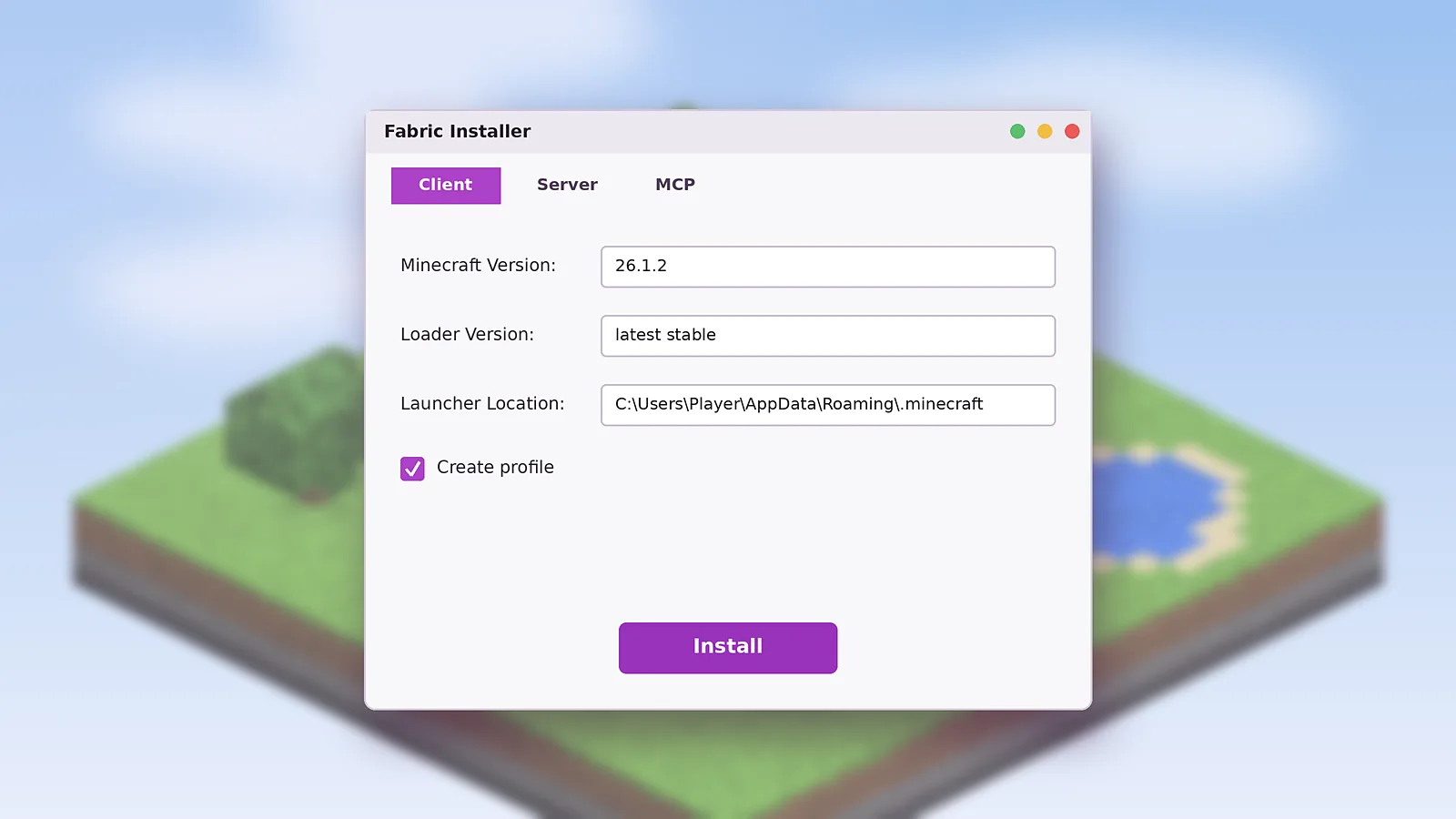
Run the Fabric installer, open the Client tab, choose your Minecraft version and leave the loader on the latest stable release. Keep Create profile ticked and click Install. A new fabric-loader profile appears in the Minecraft Launcher.
Step 2: Download both mod files
Download Litematica for your version and then download MaLiLib for the same version. Both are small .jar files. If a site offers you an .exe or asks you to complete a survey, close it. The real mod is always a jar.
Step 3: Open the mods folder
The folder path depends on your system:
- Windows: press Win + R and enter
%appdata%\.minecraft\mods - macOS:
~/Library/Application Support/minecraft/mods - Linux:
~/.minecraft/mods
If the mods folder does not exist yet, create it. Launchers that use instances keep one mods folder per instance, so open the instance folder instead.
Step 4: Add the jars and launch
Drag both jar files into the mods folder without unzipping them. Start the launcher, select the Fabric profile and press Play. On the title screen, the mod count in the corner should include Litematica and MaLiLib.
Step 5: Test it in a world
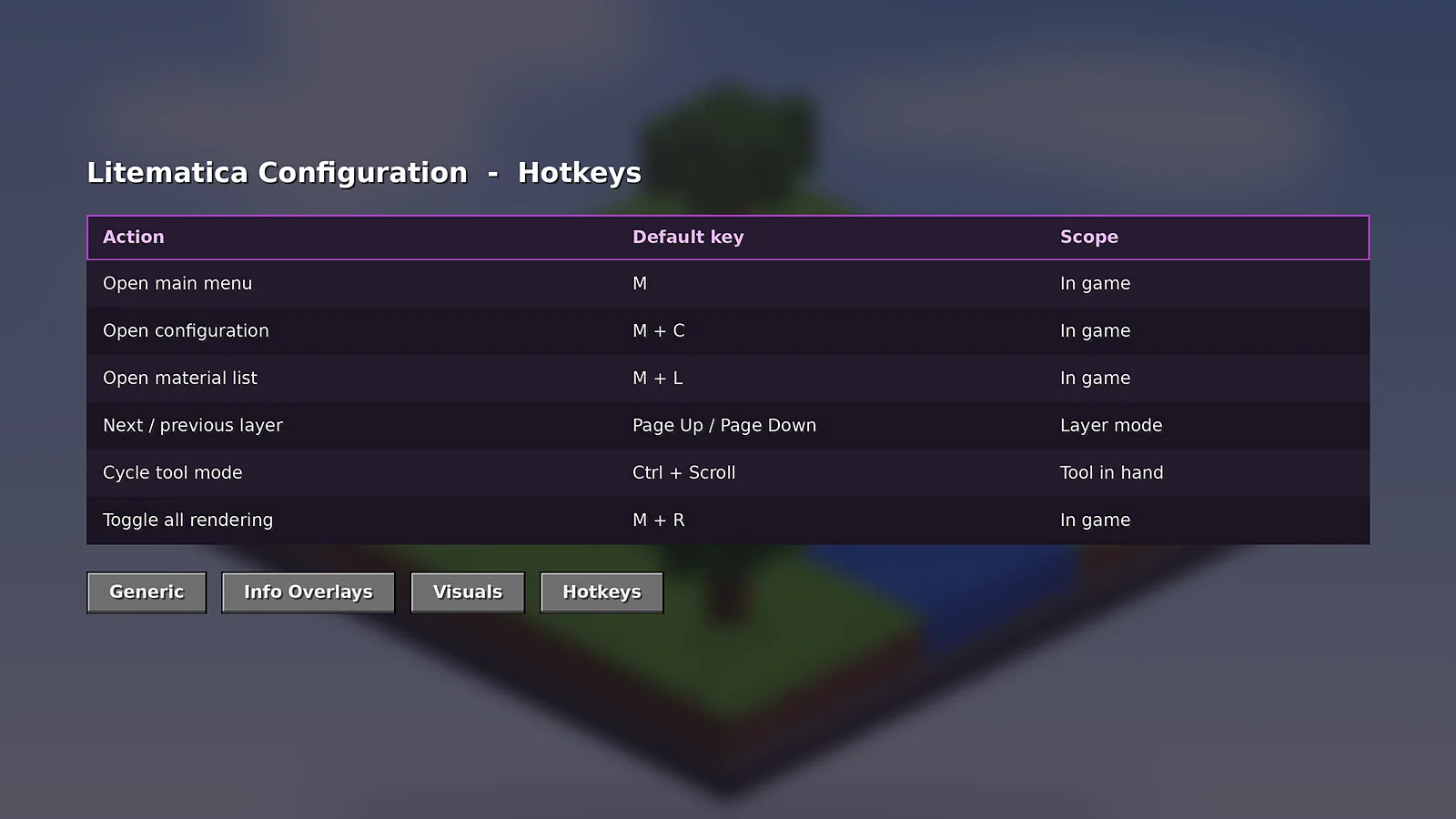
Open any world and press M. The Litematica main menu should appear with buttons for loading schematics, placements and the material list. If it does, the install worked. Next, follow our guide on how to load a schematic.
Common install mistakes
- Missing MaLiLib: Fabric stops the game and names the missing dependency. Add MaLiLib.
- Vanilla profile selected: the mods folder is ignored. Pick the Fabric profile.
- Two versions of one mod: remove older jars so only one copy remains.
- Forge modpack: Fabric mods do not load on Forge. See our FAQ about Forge ports.
If anything still fails, our troubleshooting guide covers crash reports and the fixes that solve most of them.
Key takeaways
- Install Fabric first, then add Litematica and MaLiLib.
- Match all versions to your Minecraft release.
- Press M in a world to confirm the install.

Schematic Mod Editorial Team
Our editors write practical Litematica guides and check every article against the official Litematica and MaLiLib documentation and release notes. Spotted something outdated? Tell us and we will fix it.