Loading a schematic is the moment Schematic Mod starts paying off. In a few clicks a finished build appears in your world as a hologram you can follow block by block. Here is the exact process in Litematica.
Put the file in the right folder
Litematica reads files from .minecraft/schematics. Copy any .litematic file you downloaded or received there. Subfolders are fine and help keep projects tidy. If you use an instance-based launcher, the folder sits inside the instance directory.
Open Load Schematics
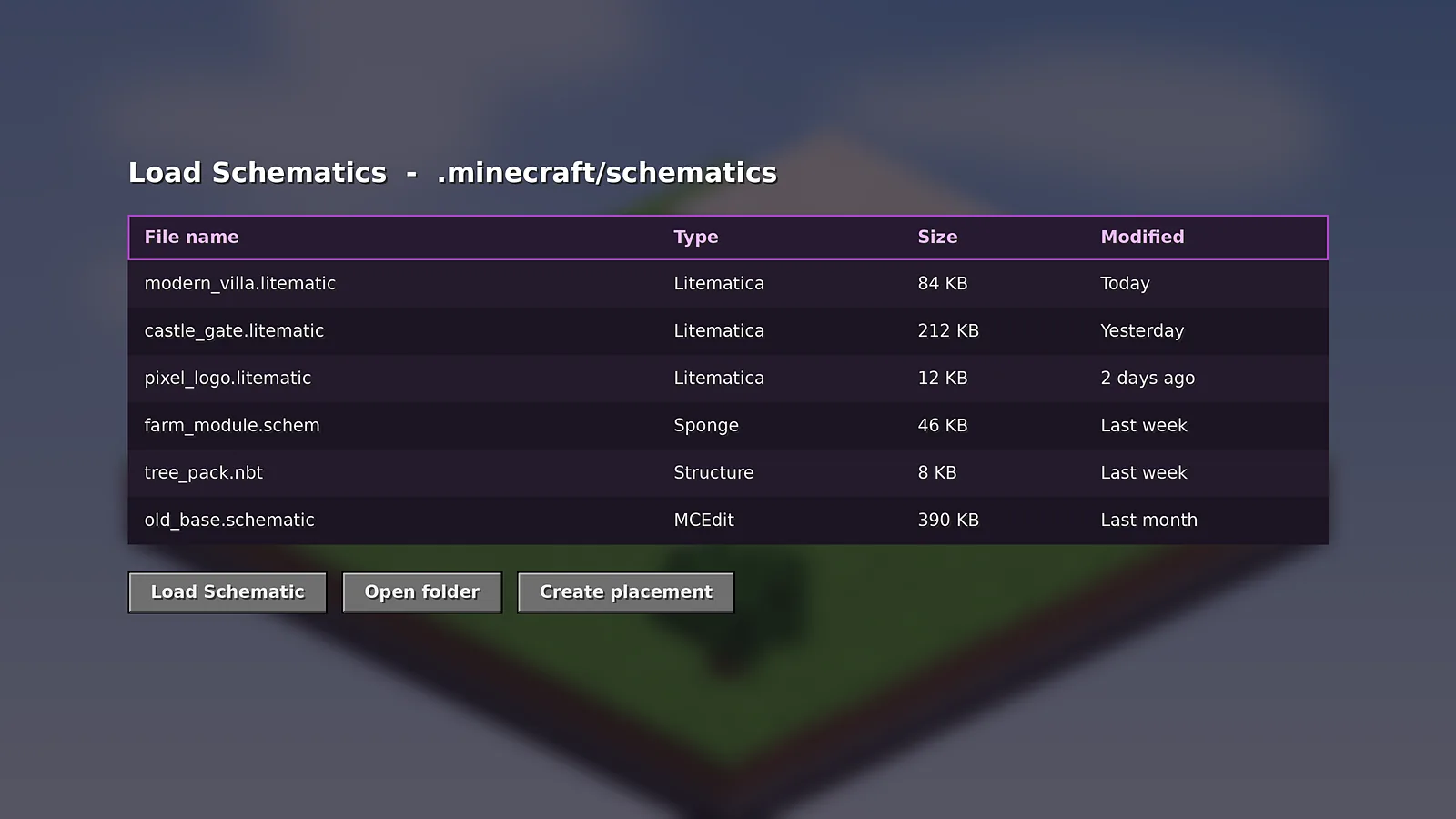
Join a world, press M and click Load Schematics. The browser shows your files and folders. Select a file to preview its size and the number of regions it contains.
Create the placement
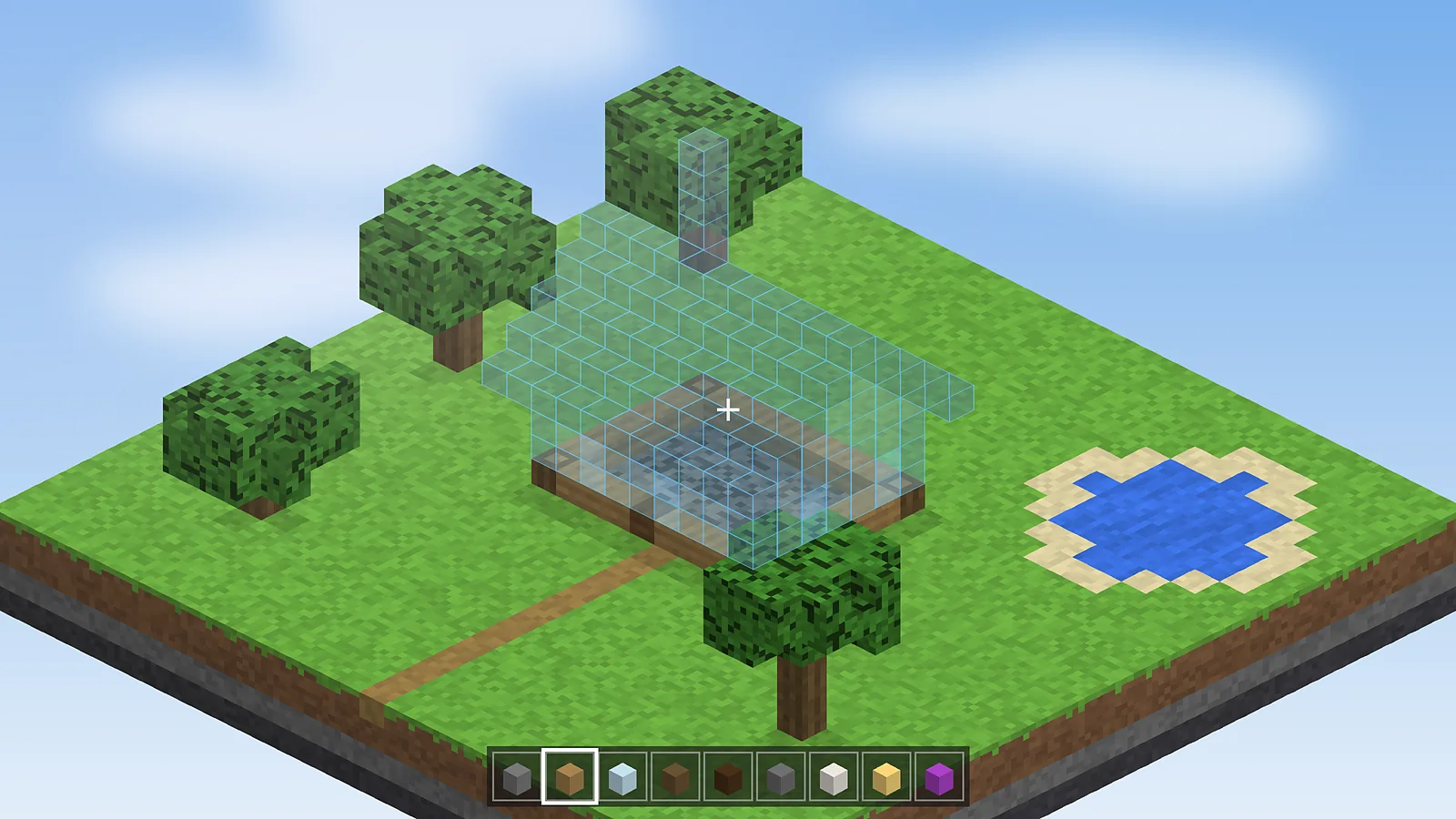
Click Load Schematic with Create placement enabled. The hologram appears at your feet. It now exists as a placement, which you manage from the Schematic Placements screen.
Move it into position
- Open Schematic Placements and select your build.
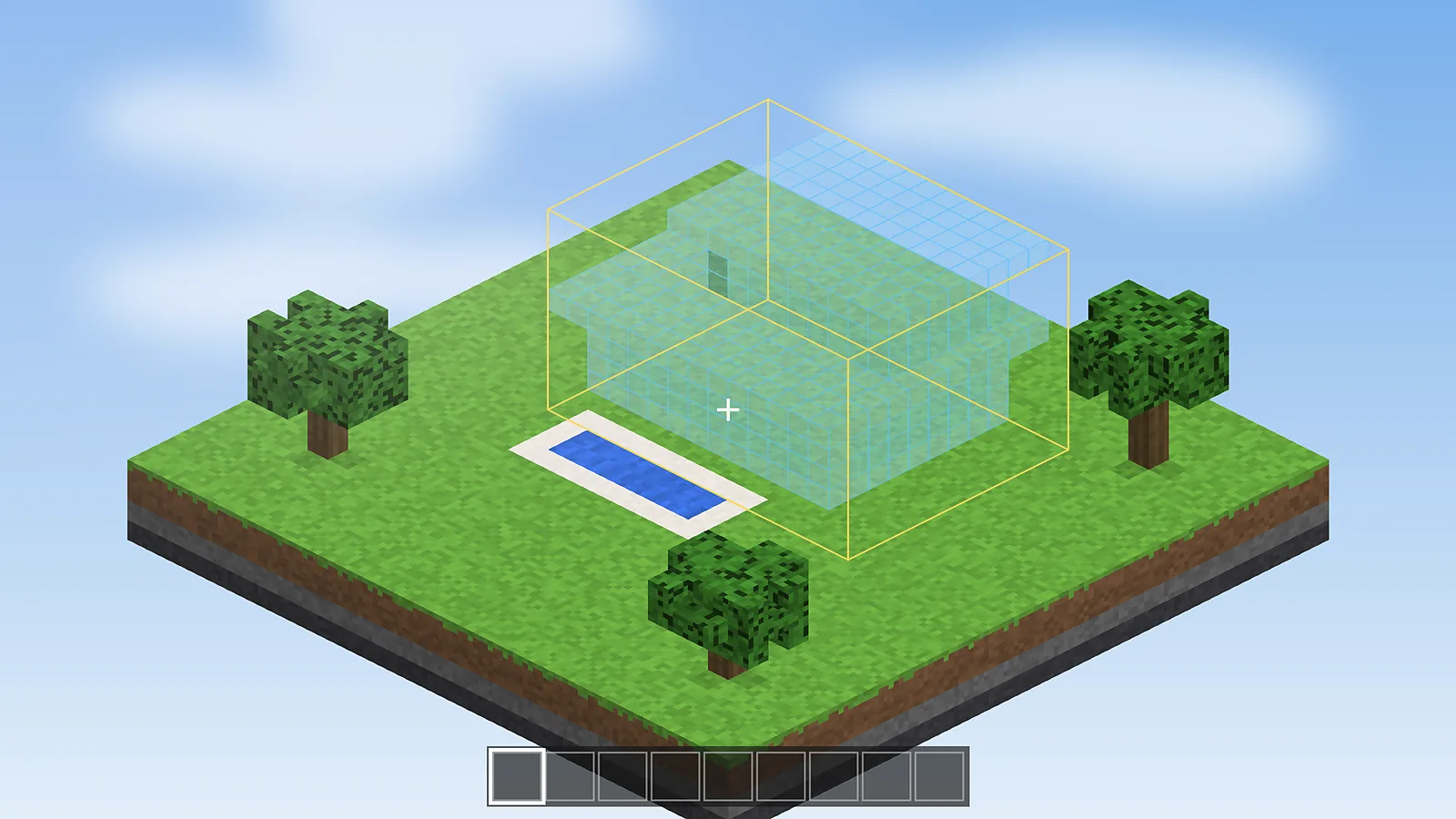
- Type exact X, Y and Z values for the origin, or use the arrow buttons.
- Rotate or mirror it if the entrance should face another way.
- Click Lock so the placement cannot be moved by accident.
Choose how much to render
Large builds are easier to follow one layer at a time. Switch the render layer mode to Single layer and step with Page Up and Page Down. Our hotkeys guide lists the default keys.
Start building
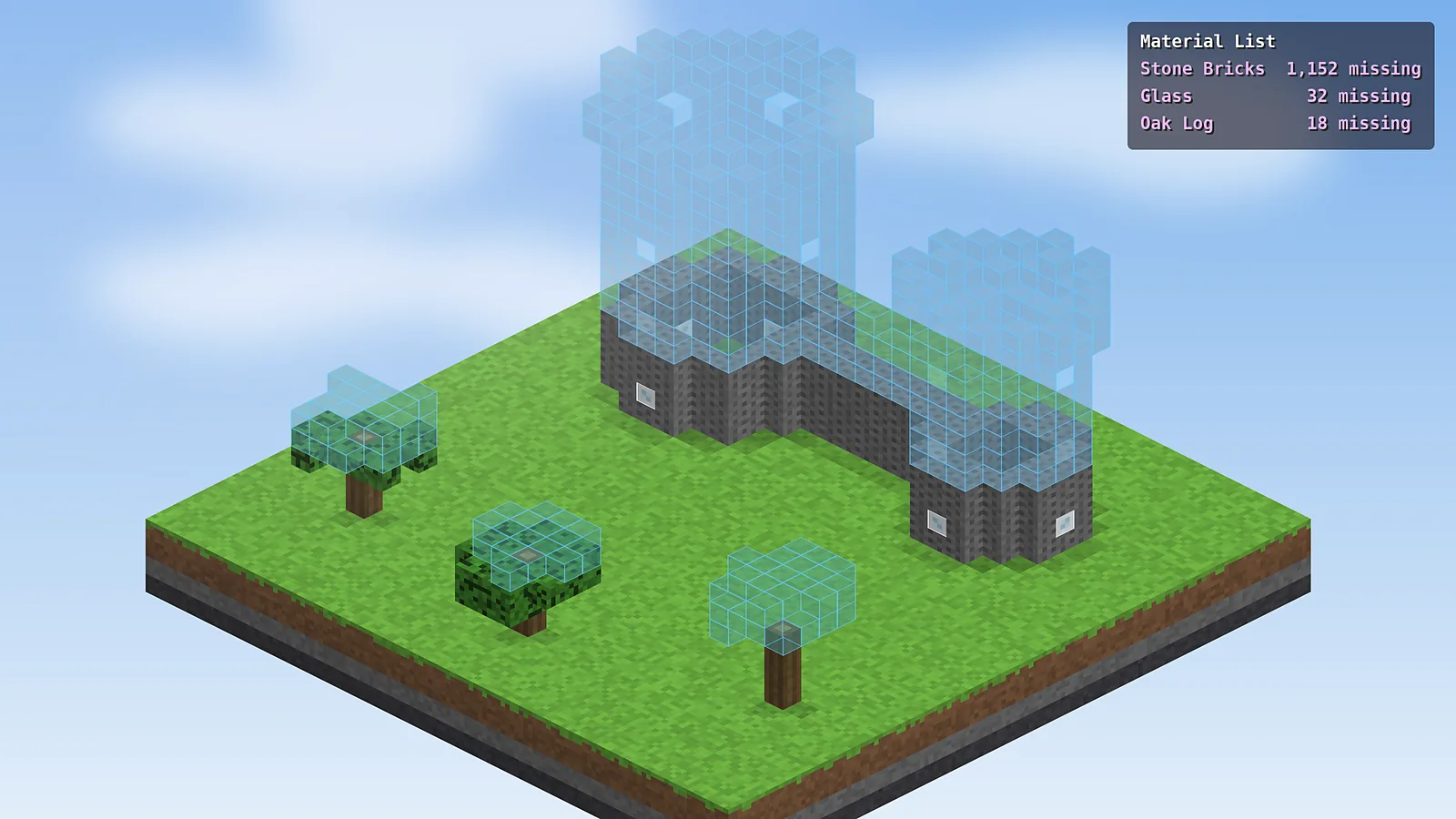
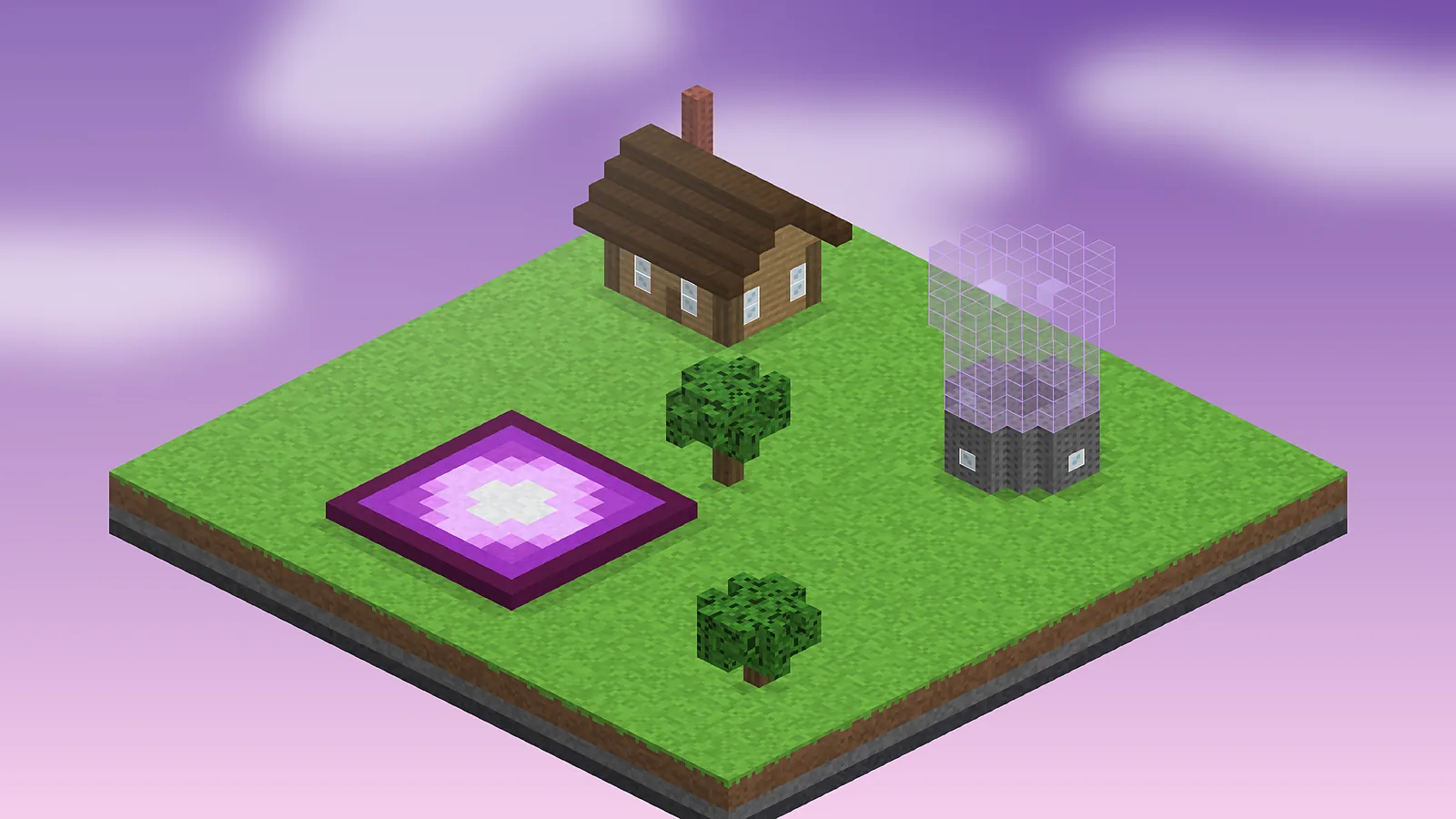
Place real blocks inside the ghost blocks. As each block matches, its overlay disappears. Open the material list to see what you still need to gather, and turn on Easy Place if rotations keep going wrong.
Loading other formats
Litematica can also load older .schematic files, vanilla .nbt structures and, in newer builds, Sponge .schem files. Read our format conversion guide for what to expect from each.

Schematic Mod Editorial Team
Our editors write practical Litematica guides and check every article against the official Litematica and MaLiLib documentation and release notes. Spotted something outdated? Tell us and we will fix it.